Long family road trips should be memorable for the right reasons — not because the kids are bored, everyone is arguing over directions, or your car’s built-in screen keeps freezing mid-route. If you own a BMW X1, you already know the frustration: a premium vehicle that somehow falls short when it comes to modern navigation and in-car entertainment. The stock system feels increasingly dated compared to what your smartphone can do, and that gap becomes painfully obvious the moment you’re stuck in traffic with restless passengers.
That’s where optimizing your BMW X1 Android screen becomes a game-changer. Whether you’re looking to add an Apple CarPlay retrofit for seamless iPhone integration or enable wireless Android Auto for hands-free Google Maps navigation, the right upgrades transform your daily commute and family adventures alike. Pair these connectivity improvements with a larger 10.25 inch car screen, and suddenly your X1’s interior feels as cutting-edge as its exterior. This guide walks you through every practical step to get there.
Table of Contents
Understanding the Limitations of the Stock BMW X1 Android Screen
The BMW X1 is a well-engineered vehicle, but its stock multimedia system tells a different story. BMW’s iDrive interface, while functional at launch, struggles to keep pace with how drivers actually use technology today. The menus feel layered and unintuitive compared to the straightforward experience of a smartphone, and the system’s response time can lag noticeably when switching between functions. For families juggling navigation, music, and passenger requests simultaneously, that friction adds up fast.
Navigation is where the BMW multimedia system shows its age most clearly. The built-in maps require paid updates to stay current, and even then, they lack the real-time traffic intelligence that apps like Google Maps or Waze deliver as standard. Missing a road closure or a faster alternate route because your system’s data is months behind is more than an inconvenience — it’s a genuine time cost on every longer drive.
Smartphone integration is another weak point. Older X1 models either lack Apple CarPlay and Android Auto entirely or offer only a wired, feature-limited version. Streaming music from Spotify, accessing podcasts, or mirroring navigation apps requires workarounds that feel clunky at best. The screen resolution and display size also fall short of modern expectations, making it harder to glance at directions quickly and safely. Understanding these gaps is the first step toward fixing them — and the good news is that targeted upgrades can address every one of these shortcomings without replacing the vehicle itself.



Why Optimization Matters for Family Travel and Entertainment
Family road trips run on logistics — keeping everyone informed, entertained, and comfortable while the driver stays focused on the road. When your car’s screen can’t reliably deliver real-time traffic updates or stream a playlist without interruption, small frustrations snowball into bigger ones. An optimized BMW X1 Android screen removes those friction points entirely, turning the cabin into a genuinely functional space for everyone inside.
Safety is the most compelling reason to prioritize this upgrade. A cluttered, slow interface forces drivers to spend more time looking at the screen and less time watching the road. When navigation is handled through wireless Android Auto, Google Maps or Waze takes over with voice-guided, real-time directions that automatically reroute around accidents and congestion. You hear the instruction, glance at a clean display, and keep your attention where it belongs. That seamless handoff between your phone and the car’s screen isn’t a luxury — it’s a meaningful reduction in distraction.
For passengers, especially children on longer drives, the difference is equally significant. An optimized system gives easy access to Spotify, YouTube Music, or audiobooks through familiar smartphone interfaces rather than buried iDrive menus. Kids can follow along on a map, reducing the relentless “are we there yet?” cycle that every parent knows well. Rear-seat passengers can request music changes without the driver fumbling through multiple menu layers.
There’s also the practical matter of keeping everyone’s devices connected. With a properly integrated setup, Bluetooth audio, USB charging, and wireless Android Auto all work simultaneously without conflicts. The result is a cabin that feels coordinated rather than cobbled together — and that coherence makes every drive, whether a school run or a weekend getaway, noticeably smoother.
Step-by-Step Solutions: Retrofitting Apple CarPlay and Enabling Wireless Android Auto
Upgrading your BMW X1’s connectivity doesn’t require buying a new car — it requires the right retrofit approach. Whether you’re an iPhone household relying on Apple CarPlay or an Android family that lives inside Google Maps, the process follows a similar path: assess compatibility, source the right hardware, install it correctly, and verify everything works together. Done properly, the result is a system that feels factory-built rather than bolted on.
Assessing Your BMW X1 Compatibility and Gathering Tools
Start by identifying your X1’s exact model year and iDrive version, since retrofit compatibility varies significantly across generations. BMW X1 models from 2016 onward generally support CarPlay and Android Auto integration through aftermarket modules, but the specific adapter you need depends on whether your vehicle has NBT, EVO, or MGU head units. Check your iDrive software version through the settings menu before purchasing anything. You’ll also need a compatible retrofit module, a coding cable or OBD interface, and optionally, professional coding software to activate the features within BMW’s system parameters. Brands like PEMP Car Audio offer BMW-specific CarPlay modules designed to work within these exact system requirements, which can simplify the compatibility research process considerably.
Installation Process for Seamless Integration
Once you have the correct module, locate the back of the head unit by removing the center console trim — most X1 models require only basic trim tools and patience. Connect the retrofit module inline with the existing USB and video harness according to the manufacturer’s wiring diagram. For wireless Android Auto specifically, the module must pair with your phone via Bluetooth before establishing its Wi-Fi direct connection. After physical installation, use the coding interface to enable CarPlay or Android Auto within iDrive’s hidden settings menu, which activates the feature at the system level.
Testing and Troubleshooting Common Issues
With installation complete, test both wired and wireless connections before reassembling the trim. Common issues include audio routing defaulting to the wrong output — resolve this by confirming the module’s audio injection settings match your amplifier type. If Google Maps voice guidance cuts out intermittently, check that Bluetooth audio priority is correctly assigned to your phone rather than a secondary device. For navigation accuracy, ensure location permissions are set to “always on” within your Android or iOS settings, giving Waze or Google Maps uninterrupted access to GPS data throughout the drive.
Upgrading to a 10.25 Inch Car Screen: Enhanced Visuals and Usability
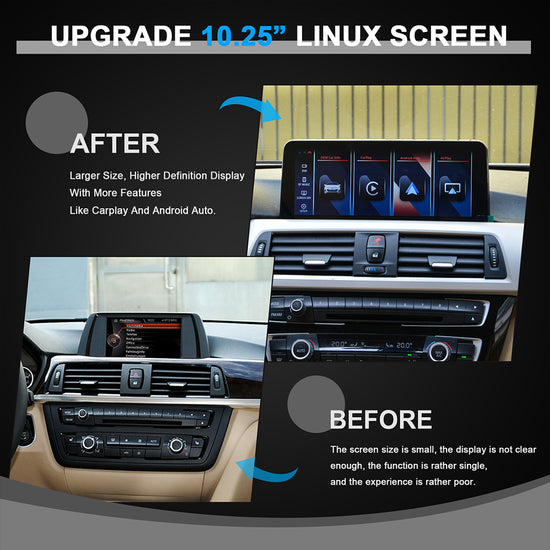
The stock BMW X1 display measures around 6.5 to 8.8 inches depending on the trim level — functional for basic iDrive navigation, but noticeably cramped when you’re running Google Maps with turn-by-turn overlays or trying to browse a music queue while keeping an eye on the road. Stepping up to a 10.25 inch car screen changes that dynamic completely. The wider aspect ratio fits more map context on screen at once, so you can see upcoming junctions and lane guidance without constantly zooming in and out. Text is larger, touch targets are more forgiving, and the overall experience shifts from tolerable to genuinely comfortable.

Before purchasing a replacement unit, confirm that the screen you’re considering is specifically designed for your X1’s generation. Fitment varies between the F48 and U11 chassis, and the display must integrate with your existing iDrive controller, climate controls, and surrounding trim without requiring custom fabrication. Look for units that retain BMW’s original button layout and use plug-and-play connectors to minimize installation complexity — PEMP Car Audio’s BMW-specific screen upgrades, for instance, are built around this plug-and-play philosophy to preserve the factory look and feel. Screens with IPS panels offer significantly better viewing angles than TN alternatives — important when a front passenger is following along on navigation or controlling music.
Installation typically involves removing the center fascia trim, disconnecting the factory display harness, and securing the new unit using the original mounting points. Most quality aftermarket screens include a matching trim bezel that maintains the factory appearance. After mounting, reconnect the harness, restore the trim panels, and run a quick system check to confirm touch calibration and brightness auto-adjustment are functioning correctly. The visual upgrade alone makes every subsequent drive feel noticeably more modern.
Maximizing Your Optimized System for Family-Friendly Navigation
With CarPlay or wireless Android Auto active and a larger display in place, the real payoff comes from using these tools deliberately. Waze and Google Maps both shine on the upgraded screen — Waze excels at flagging speed cameras, police presence, and road hazards reported by other drivers in real time, while Google Maps offers superior lane guidance on complex highway interchanges. Switching between the two takes seconds through the CarPlay or Android Auto interface, so you can choose whichever suits the route without losing momentum.
For music, Spotify’s integration through both platforms is seamless. Create a dedicated road trip playlist in advance, and the driver can skip tracks or adjust volume using steering wheel controls without touching the screen. Apple Music and YouTube Music work equally well, and podcast apps like Overcast or Pocket Casts keep adults engaged on longer stretches while kids follow along on the map display. The bigger screen makes it genuinely easy for a front passenger to manage the queue independently.
A few habits make the whole system work harder for your family. Set your home and frequent destinations as saved locations in Google Maps so navigation launches in two taps. Enable “Do Not Disturb While Driving” on both Android and iOS to suppress notification interruptions during trips. For multi-stop family outings, use Google Maps’ waypoint feature to sequence destinations — grocery stop, school pickup, and home — in a single route. These small configurations, combined with the hardware upgrades already in place, turn your BMW X1 into a genuinely coordinated family vehicle rather than a premium car with a frustrating screen.
Transform Your BMW X1 Into a Modern Family Navigation Hub
Optimizing your BMW X1 Android screen isn’t about chasing the latest tech trend — it’s about making every drive genuinely better for everyone in the car. The stock iDrive system’s limitations are real: outdated navigation, poor smartphone integration, and a display that struggles to keep up with how modern families actually use their vehicles. But those limitations are fixable, and the path forward is clearer than most owners realize.
By retrofitting Apple CarPlay or enabling wireless Android Auto, you gain real-time navigation through Google Maps and Waze, seamless music streaming, and a hands-free experience that meaningfully reduces driver distraction. Upgrading to a 10.25 inch car screen amplifies every one of those benefits — larger visuals, better readability, and a cabin that finally matches the X1’s premium reputation. Layer in the practical habits covered in this guide, from saved destinations to Do Not Disturb settings, and the entire system works as a cohesive unit rather than a collection of separate features.
The investment pays dividends on every drive, whether it’s the school run on a Tuesday morning or a cross-country family road trip. Take the first step today: identify your iDrive version, source the correct retrofit module, and start the upgrade process. Your future self — and every passenger in that car — will notice the difference immediately.